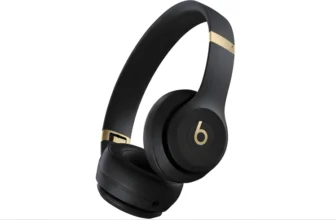
How to Pair Beats Studio Pro

Sometimes, I feel like Bluetooth devices have a secret pact to test our patience. You turn one on, you turn the other on, and somehow—nothing connects. If you’ve just bought the Beats Studio Pro and are staring at it wondering if it’s supposed to flash, blink, or play a song before it pairs, don’t worry—I’ve been there too.
In this guide, I’ll walk you through everything about pairing, turning on, charging, and even connecting your Beats to a TV. You’ll also find easy steps for Powerbeats Wireless, since they share a few pairing quirks. By the end, you’ll be handling your Beats like a pro—no tech degree required.
What You’ll Learn Today
Here’s a quick rundown of what I’ll cover:
- How to pair Beats Studio Pro with any device
- How to turn on and off Beats Studio Pro
- How to charge Beats Studio Pro correctly
- How to pair Powerbeats Wireless
- How to turn on Powerbeats
- How to connect Beats to your TV
- A few friendly tips (and quick fixes) that make your life easier
If you’re also searching for something more kid-friendly, check out my post on best headphones for preschoolers. I promise—it’s written with the same mix of clarity and sanity-saving advice.
How to Pair Beats Studio Pro

Let’s start with the main event—pairing your Beats Studio Pro. Whether you’re connecting them to your phone, laptop, or tablet, the process is straightforward once you know what those little lights mean.
Step 1: Turn Them On
Press and hold the power button on the right earcup until the indicator light starts flashing. That blinking light means your Beats are in pairing mode and ready to connect.
If nothing happens, it’s possible your battery is dead (don’t worry, I’ll explain charging in a bit).
Step 2: Enable Bluetooth on Your Device
Open your phone or computer’s Bluetooth settings and make sure Bluetooth is turned on.
On most devices:
- iPhone/iPad: Go to Settings → Bluetooth, then wait for your Beats to appear.
- Android: Go to Connections → Bluetooth, and tap Beats Studio Pro when it shows up.
- Windows: Open Bluetooth & Devices → Add Device → Bluetooth, and select your Beats.
- macOS: Go to System Settings → Bluetooth, and select Beats Studio Pro.
Once you see the device listed, tap or click to pair.
Step 3: Confirm the Connection
When the light turns solid white, your Beats Studio Pro are officially paired. You’ll hear a small tone—kind of like a polite “hello.”
If it doesn’t work the first time, don’t panic. Bluetooth can be moody. Turn both devices off, wait a few seconds, and try again.
How to Turn On and Off Beats Studio Pro
Now that your Beats are paired, let’s talk power management—because no one likes dead headphones halfway through a playlist.
To Turn On
Hold down the power button on the right earcup until the white LED light comes on. That’s it—you’re live.
To Turn Off
Press and hold the same button until the light goes off. Easy, right?
If you’re using them with multiple devices (like a phone and laptop), you don’t need to unpair them each time. Just turn them on, and they’ll automatically reconnect to the last used device.
A quick note: if your Beats don’t respond when turning on, they might need a charge—or a short break from your frustrated tapping.
How to Charge Beats Studio Pro

Charging might sound simple, but a few good habits can make your battery last longer.
What You Need
The Beats Studio Pro uses a USB-C cable (included in the box). Plug one end into the headphones and the other into a power source—your laptop, power bank, or a standard wall adapter.
Charging Indicators
- Red light: Battery is low (time to plug in).
- Flashing red: Critically low—charging is non-negotiable now.
- White light: Fully charged.
From my experience, a full charge usually takes about 2 hours, and you’ll get around 40 hours of playback. If you’re in a rush, a 10-minute charge gives about 4 hours of listening. Perfect for when you’re running out the door and realize your playlist is silent.
One tip—avoid leaving them plugged in all night. Your Beats will handle it, but lithium batteries appreciate moderation more than marathon charging sessions.
How to Pair Powerbeats Wireless

If you also have Powerbeats Wireless, you’ll find their pairing process similar but with a few twists.
Step 1: Turn Them On
Press and hold the power button on the left earbud until the LED starts flashing. That’s pairing mode.
Step 2: Enable Bluetooth on Your Device
Turn on Bluetooth on your phone or laptop and look for Powerbeats Wireless in the list. Tap or click to connect.
If you’re using an iPhone, the Beats should appear automatically on-screen—just tap “Connect.” Apple made that part almost too easy.
Step 3: Confirm the Connection
Once paired, the LED will stop flashing. You’ll also see the battery level appear on your phone’s screen.
If you switch devices later (say, from phone to tablet), hold the power button for five seconds to re-enter pairing mode. Simple and quick.
How to Turn On Powerbeats
Sometimes it’s the smallest button that causes the biggest confusion.
To turn on your Powerbeats, press and hold the power button until the indicator light comes on.
To turn off, press and hold again until it goes dark.
If they don’t respond, check the battery level—these tiny earbuds are great at going from full to flat right when you least expect it.
How to Connect Beats to TV

Now for a slightly different setup. Maybe you want to watch movies late at night without waking up the entire household. Pairing Beats to your TV is easier than most people think.
Smart TVs with Built-in Bluetooth
- Put your Beats Studio Pro into pairing mode (press and hold the power button until the light flashes).
- On your TV, open Settings → Bluetooth (or Remotes & Accessories on some models).
- Select Add Device or Pair New Device.
- Choose Beats Studio Pro when it appears, then confirm the pairing.
Your TV’s audio should now stream directly to your Beats.
If Your TV Doesn’t Have Bluetooth
You can use a Bluetooth transmitter—a small device that plugs into your TV’s headphone or optical port. Once connected, pair your Beats with the transmitter just like any other Bluetooth device.
Bonus Tip
If you experience audio lag (the movie’s lips move before the sound plays), check your TV’s “audio delay” settings. Adjusting that fixes most syncing issues.
Common Connection Problems (and My Quick Fixes)
Even great headphones have off days. If your Beats aren’t connecting or keep dropping signal, here are a few quick fixes I rely on:
- Forget and Reconnect:
Go to your device’s Bluetooth settings, tap “Forget This Device,” then pair again from scratch. - Charge Before Pairing:
Low batteries sometimes block Bluetooth pairing—plug in for ten minutes, then retry. - Reset Your Beats Studio Pro:
Hold the power and volume down buttons together for 10 seconds. The LED will flash—this resets everything. - Keep Devices Close:
Bluetooth range is about 30 feet. Walls, microwaves, and even water bottles (don’t ask) can interfere. - Update Firmware:
Use the Beats app (iOS/Android) to check for updates—this solves many connectivity bugs.
If you still can’t get them to cooperate, take a deep breath and restart both devices. I’ve fixed more Bluetooth issues that way than I’d like to admit.
My Final Thoughts
Once you get the hang of it, pairing and managing Beats headphones becomes second nature. Whether it’s the Studio Pro or Powerbeats Wireless, both are built for convenience—you just need to know their little quirks.
Personally, what I love about the Beats Studio Pro is how balanced the experience feels. Great noise cancellation, a battery that lasts forever, and simple controls that don’t require a manual the size of a novel.
If you’re exploring other options, especially for younger listeners, check out my post on my review of best soundcore earbuds. Both cover comfort, sound quality, and real-world use—without the marketing fluff.
And if your Beats still refuse to pair after all this? Well, maybe they just need a moment to “connect” emotionally. (Hey, mild humor keeps troubleshooting bearable.)
Summary
To wrap it up neatly:
- Turn on Beats Studio Pro → hold power button until light flashes.
- Pair via your device’s Bluetooth menu.
- Charge using USB-C for 2 hours = 40 hours of playback.
- Powerbeats Wireless → same steps, just smaller buttons.
- TV connection → use Bluetooth settings or a transmitter.
Follow these, and your Beats will behave beautifully.