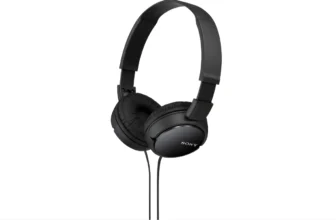
Sony Bluetooth Headphones Pairing

Let’s be honest—linking headphones to multiple gadgets can feel trickier than it should be. I’ve stared at my laptop, headphones in hand, thinking they might just be ignoring me. Over time, I’ve learned a few simple methods that make pairing almost effortless.
In this guide, I’ll walk you step by step on pairing your Sony audio gear, connecting to PCs and laptops, managing earbuds, and optimizing your experience with the Sony app. By the end, your headset will be ready to deliver crisp sound in minutes.
What You’ll Learn in This Guide
Here’s a quick roadmap:
- How to use the Sony headphones pairing mode
- Linking to Android and iOS gadgets
- How to connect Sony headphones to PC
- How to connect Sony earbuds to laptop
- Using the Sony app for headphones
- Maintaining a stable wireless connection
- Troubleshooting common issues
- FAQs for quick answers
Understanding Sony Headphones and Pairing Mode
Before jumping into connections, it helps to know what “pairing mode” actually means.
When I activate pairing mode on my Sony set, I put it into a state where it can communicate with another gadget. Usually, the LED starts flashing, signaling it’s ready.
Key things to keep in mind:
- Wireless Standard: Recent models use advanced protocols for reliable connectivity.
- NFC Compatibility: If your headset supports it, you can pair with a simple tap.
- Multiple Connections: Some models let you link two gadgets at once—perfect for switching from a phone call to laptop audio without reconnecting.
Understanding these points makes the setup smoother and faster.
Preparing Your Headphones for Connection
Before I start pairing, I follow a few steps:
- Charge fully. A low battery can prevent devices from detecting your set.
- Enable wireless on your gadget.
- Reset previous pairings if necessary. Clearing old connections helps avoid conflicts.
Once these steps are done, you’re ready to move on.
Pairing With Mobile Devices
Android Phones
- Hold the power button until the LED flashes—this signals that pairing mode is active.
- Open Settings → Wireless & networks → Bluetooth.
- Select your Sony headset from the list.
Tip: If it doesn’t appear, turn Bluetooth off and on again. Works more often than you’d expect.
iPhone or iPad
- Activate pairing mode by holding the power button.
- Navigate to Settings → Bluetooth.
- Tap the headphones from the available list. Enter 0000 if prompted.
iOS usually connects quickly, but a retry might be needed. Patience goes a long way here.
How to Connect Sony Headphones to PC

For many, linking to a computer is the trickiest part. Here’s the method I use:
- Click the Bluetooth icon in the taskbar → Add a device → Bluetooth.
- Activate pairing mode on the headset.
- Select your audio set from the available list and click Connect.
Pro Tip: If your PC doesn’t detect it, check drivers or visit Sony’s support page. Firmware updates often fix glitches.
How to Connect Sony Earbuds to a Laptop

Earbuds are similar, but often have a case button for linking:
- Hold the button on the case until the LED flashes.
- On your laptop, go to Settings → Devices → Bluetooth & other devices → Add Bluetooth device.
- Select your earbuds from the list.
If your laptop uses a newer wireless standard, the connection will be faster and more reliable.
Connecting to Mac Computers
- Open System Preferences → Bluetooth.
- Put the headphones in pairing mode.
- Click Connect when the set appears.
Macs usually handle connections well. If pairing fails, restart the wireless module and try again.
Using NFC for Instant Connection

NFC makes linking almost magical. Here’s my method:
- Enable NFC on your phone.
- Tap it against the NFC logo on the headphones.
- Confirm the connection if prompted.
It’s fast, reliable, and perfect when you’re in a hurry.
Sony App for Headphones

The Sony Headphones Connect app is a must-have in my setup. I use it for:
- Adjusting sound profiles like bass, mids, and treble.
- Monitoring battery life.
- Updating firmware for smooth performance.
The app also supports immersive audio modes, making music feel much more dynamic and natural. I’ve found it transforms casual listening into something much richer.
Troubleshooting Common Issues

Even reliable headphones occasionally misbehave. Here’s my approach:
- Not appearing: Reset and restart your gadget.
- Connection drops: Keep devices within range and avoid walls or interference.
- Audio lag: Check if your device supports higher-quality wireless standards.
- Multiple connections failing: Limit to two gadgets at once for stability.
Most issues can be solved quickly with these simple steps.
Tips for a Stable Connection
To keep things running smoothly:
- Keep devices near the headset.
- Turn off other wireless gadgets nearby.
- Update firmware regularly via the app.
- Use wired mode if wireless fails or the battery is low.
Consistently following these tips ensures uninterrupted, high-quality audio.
Extra Guidance I’ve Learned
- Rename your headphones in Bluetooth settings for easy identification.
- Disconnect gadgets you’re not using to save power.
- Explore advanced settings in the app for more control over sound and notifications.
For a better listening experience, check my guides on best soundcore earbuds and top bass headphones. They complement Sony headphones nicely.
FAQs
Can I connect my headphones to two devices at once?
Yes, most models support dual connections. I often keep my phone and laptop linked simultaneously.
Why won’t my headphones show up on my gadget?
Reset and clear old pairings. Starting fresh usually fixes it.
Do I need the Sony app?
Optional, but highly recommended. It helps manage sound, battery, and firmware.
How long does pairing take?
Typically under a minute if the gadget is compatible and ready.
Are earbuds different from over-ear headphones?
Mostly the same. Earbuds often use a case button for pairing.
Summary
Pairing your Sony headphones is simple when you follow the right steps:
- Use pairing mode to link with phones, laptops, or Macs.
- NFC makes instant connections easy.
- The Sony app helps manage audio, battery, and updates.
- Troubleshoot with resets and firmware updates if needed.
- Keep devices close and reduce interference for stable connections.
Following this guide saves time, reduces frustration, and lets you enjoy high-quality audio anywhere. A few minutes of setup now means stress-free listening later.