How to Pair Beats Earbuds: A Complete Guide for Every Device

If there’s one thing I’ve learned after testing countless wireless audio products, it’s that proper connection makes all the difference. Even the best earbuds can frustrate you if pairing goes wrong. Beats earbuds, in particular, offer excellent sound and style but only if you set them up correctly.
Whether you’re connecting them to an iPhone, Android, or even a laptop, knowing the right steps saves time and frustration. I’ll also touch on related devices like AirPods, Samsung earbuds, and JBL earbuds so you have all the tips in one place.
Here’s a clear roadmap of How to Pair Beats Earbuds:

Quick Overview What You’ll Learn
- Preparing your earbuds for connection.
- Pairing Beats with iPhone and iPad.
- Connecting Beats to Android devices.
- How to Pair Beats Earbuds.
- Connecting Samsung earbuds to Apple devices.
- Pairing JBL earbuds quickly and reliably.
- Troubleshooting common issues with wireless audio.
- Tips to maintain smooth connections across devices.
- FAQs and expert advice for every scenario.
Preparing Your Beats Earbuds for Connection
Before you start, make sure your earbuds are ready to work. Even seasoned users skip these steps and run into problems.
- Charge Your Earbuds
Always start with fully charged earbuds. Low battery can prevent a successful connection. - Reset if Necessary
If your earbuds were previously linked to other devices, a reset ensures a clean start. You can usually do this by pressing the power or pairing button for several seconds until the LED flashes. - Understand the LED Indicators
Most earbuds use lights to show status. A steady or blinking white light usually means the earbuds are ready to connect, while red often indicates low battery. - Keep Devices Close
Bluetooth works best within a few feet. Don’t try pairing from across the room physical proximity matters.
Tip: If your earbuds were paired with multiple devices before, disconnect them from other sources to prevent conflicts.
Pairing Beats Earbuds With iPhone and iPad
Apple devices simplify the connection process thanks to the W1 or H1 chip in many Beats models.
Automatic Connection for iOS Users
- Open the charging case near your iPhone or iPad.
- A popup will appear; tap Connect.
- Follow on-screen prompts to finish setup.
This method is nearly effortless and works with newer Beats models as well as AirPods.
Manual Connection for iOS
If the popup doesn’t appear:
- Go to Settings > Bluetooth.
- Look for your Beats earbuds in the list of available devices.
- Tap to connect and confirm.
Pro Tip: Always keep your iOS updated. Some pairing issues can occur on outdated software.
Pairing Beats Earbuds With Android

Connecting Beats to Android is slightly different but straightforward:
- Open Bluetooth settings on your device.
- Take the earbuds out of the case. Hold the power/pairing button until the indicator flashes.
- Locate your earbuds in the device list and tap Connect.
- Confirm any prompts.
Many Android devices allow you to adjust audio settings or EQ using the Beats app. This is handy for customizing sound and bass levels.
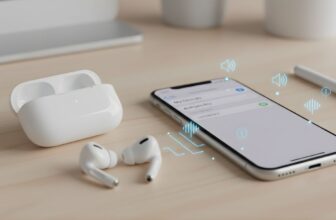
How to Put AirPods in Pairing Mode
Even if you’re an iPhone user, sometimes AirPods need manual pairing:
- Place the AirPods in the charging case and open the lid.
- Press and hold the back button until the light flashes white.
- Go to Settings > Bluetooth and select the AirPods from the list.
Quick Tip: Manual pairing is especially useful if you want to connect AirPods to a non-Apple device like a Windows PC or Android phone.
Connecting Samsung Earbuds to iPhone
Samsung earbuds are usually optimized for Galaxy devices, but they work with Apple products as well:
- Open Bluetooth settings on your iPhone.
- Remove the earbuds from their case and hold the touch area or power button until the LED flashes.
- Select the earbuds from the available devices list.
Note: Some Samsung-specific features may not function on iOS, but audio playback and basic controls work flawlessly.
How to Pair JBL Earbuds
JBL models are known for universality and quick connectivity:
- Power on your earbuds and hold the Bluetooth/pairing button.
- Open Bluetooth settings on your device.
- Select your JBL earbuds from the list.
- Confirm the connection.
Tip: Keep the JBL firmware updated via the official app to reduce latency and improve pairing stability.
Troubleshooting Common Connection Problems
Even the best wireless earbuds occasionally misbehave. Here’s how I handle frequent issues:
- Earbuds Not Appearing in Bluetooth: Reset and ensure they are in pairing mode.
- Frequent Disconnects: Keep them charged and close to your device. Remove interference from other Bluetooth sources.
- Audio Lag or Delay: Update firmware or check for device-specific latency issues.
- LED Confusion: Consult the manual; different colors/flashes indicate battery status or pairing mode.
Pro Tip: For heavy users who switch between multiple devices, a periodic reset keeps things smooth.
Maintaining a Stable Connection
- Update Devices and Earbuds – Software updates often fix bugs and improve connectivity.
- Store Properly – Keeping them in the charging case protects the battery and avoids accidental disconnects.
- Avoid Obstructions – Thick walls and metal objects can weaken Bluetooth signals.
- Clean Charging Contacts and Ear Tips – Dirt can interfere with pairing and sound quality.
- Avoid Overloading Bluetooth – Connecting too many devices simultaneously can confuse your earbuds.
Extra Tip: Consider disabling Wi-Fi temporarily if you experience interference during initial pairing.
Advanced Tips for Seamless Multi-Device Use
Many users switch between phones, tablets, or laptops. Here’s how to do it efficiently:
- Use App Settings – Some earbuds, like Beats or JBL, have apps to manage multiple connections.
- Prioritize Frequent Devices – Keep the ones you use most close for faster reconnection.
- Re-pair Occasionally – Devices can “forget” preferences if connections fail repeatedly; resetting ensures stability.
FAQs About Beats and Other Earbuds
Q1: Can I connect Beats earbuds to multiple devices at once?
A: Most models remember several devices but typically connect to one at a time. Switching is easy but may require manual selection.
Q2: How do I know my AirPods or Beats are in pairing mode?
A: Look for a flashing white LED. If the light doesn’t appear, hold the power button longer or reset the earbuds.
Q3: Why won’t my Samsung earbuds appear on my iPhone?
A: Ensure they are in pairing mode, your iPhone Bluetooth is active, and they’re not already connected elsewhere.
Q4: Can I use JBL earbuds with PCs or laptops?
A: Absolutely. Pair them via your device’s Bluetooth menu. Some laptops may need additional Bluetooth drivers.
Q5: How long should it take to pair earbuds?
A: Usually under 30 seconds if the earbuds are charged and in pairing mode.
My Personal Tips for Professionals and Frequent Travelers
- Always Carry the Case – It protects the earbuds and provides emergency charging.
- Customize Your EQ – Apps can help you boost bass or treble depending on your listening environment.
- Test Connection Before Trips – Reconnect at home to avoid surprises during travel.
- Label Your Devices – For multi-device households, renaming earbuds can prevent confusion.
Fun note: I once tried pairing earbuds in a crowded airport. Lesson learned: patience and minimal movement are underrated.
Effortless Pairing for Every Device
Pairing earbuds doesn’t need to be stressful. Following a clear, step-by-step process ensures smooth connections across iOS, Android, and other devices. Beats, AirPods, Samsung, and JBL all have quirks, but the basics remain the same:
- Charge your earbuds.
- Activate pairing mode.
- Select the device from Bluetooth settings.
- Confirm the connection.
Once set up, you can enjoy music, calls, and podcasts without interruptions. Proper maintenance, occasional resets, and app management ensure long-term reliability.
No matter which brand or model you use, these tips make wireless audio simple, consistent, and enjoyable.
Light humor: Remember, pairing earbuds shouldn’t feel like defusing a bomb keep it simple, stay patient, and enjoy your music.