JBL Headphones Bluetooth Pairing
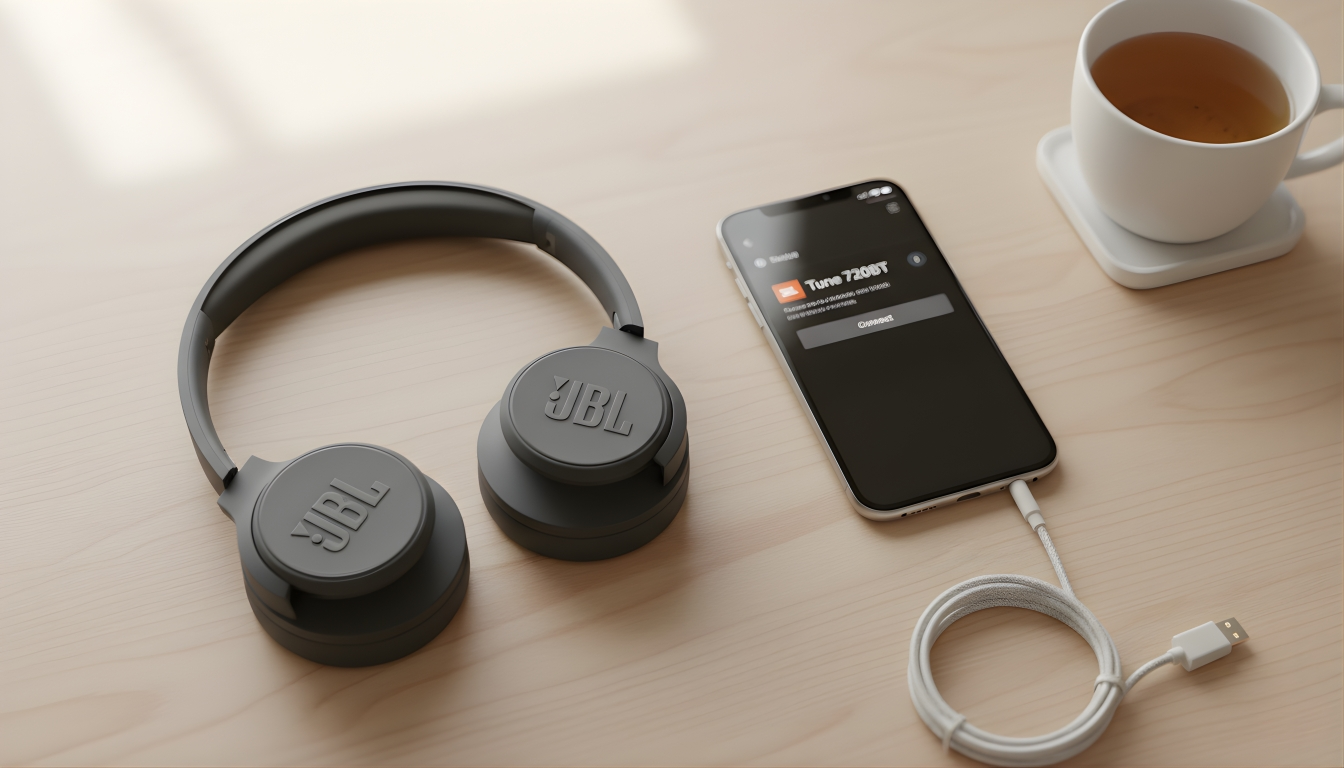
There’s something both exciting and slightly nerve-racking about unboxing a new pair of headphones. I always expect that perfect moment — pressing the power button and instantly hearing music — only to realize my phone and the headphones haven’t formally “met” yet. That’s where Bluetooth pairing comes in, and if you’re using JBL gear, the process is much simpler than it looks.
Over the years, I’ve connected enough JBL models — from compact earbuds to studio-grade over-ears — to know a few shortcuts and small mistakes people often make. Whether you own the JBL Tune 510BT, Tour One M2, or a budget pair from the Wave or Endurance series, this guide walks you through how to connect them properly, solve connection issues, and get the most reliable wireless experience possible.
What You’ll Learn
Before diving into steps and buttons, here’s a quick look at what I’ll cover:
- How I connect JBL wireless earbuds and over-ear models effortlessly.
- Clear steps for pairing popular options like the Tune 510BT and Wave Flex.
- What the blinking lights and pairing buttons actually mean.
- Fixes for when your JBL refuses to connect or randomly drops audio.
- My personal connection tips to keep sound stable and lag-free.
- A few model recommendations if you want an affordable or premium JBL upgrade.
Understanding How JBL Connection Works
Pairing is essentially your audio gear and your phone agreeing to stay in touch. Once the first introduction is made, they’ll remember each other the next time you switch them on. The trick is knowing when your JBL is “ready to talk.”
Most JBL headphones share a simple pattern: a power button that also triggers connection mode, and a small LED light that flashes when ready. On newer models like the Tour One M2 and Tune 520BT, the LED usually blinks blue; on older ones, it might alternate between red and white.
When that light flashes, it’s time to open your phone or laptop’s Bluetooth menu and look for the model name. Once tapped, they bond instantly — a wireless friendship sealed in a second.
Connecting JBL Wireless Earbuds

I’ll start with earbuds since they’re a bit trickier due to their compact size. Whether it’s the JBL Tune 230NC, Wave Beam, or Endurance Run 2, the process follows the same logic.
- Take both earbuds out of the charging case. They should switch on automatically.
- Check the light. If they start blinking, they’re already waiting to connect.
- If not blinking, enter pairing mode manually.
- Touch and hold both earbuds for about five seconds until you see a fast-flashing light.
- Open Bluetooth on your phone.
- On Android, head to Settings → Connections → Bluetooth.
- On iPhone, go to Settings → Bluetooth and enable it.
- Tap the name of your JBL earbuds.
- Wait for a solid light or tone confirming the connection.
Once paired, you can open the JBL app (if your model supports it) to fine-tune EQ, check battery levels, and toggle features like Ambient Aware or TalkThru.
Pro Tip: Earbuds can only stay connected to one gadget at a time. If you try pairing to another phone while still linked to your laptop, the connection might fail. Disconnect first; then pair again.
Pairing JBL Tune 510BT (and Similar Models)
The Tune 510BT has earned its popularity for a reason — lightweight build, solid battery life, and punchy bass at a wallet-friendly price. But many first-time users stumble on how to link it the first time.
Here’s my quick method:
- Power on the headphones. Press and hold the power button until you see the small indicator start flashing.
- Activate Bluetooth on your phone or tablet.
- Select “JBL Tune 510BT” from the list that appears.
- Wait for confirmation. The light will turn steady, and you’ll hear a short tone.
For laptops, open Bluetooth & Devices → Add Device on Windows or System Settings → Bluetooth on Mac. Then, click the JBL name and confirm.
I also recommend renaming your device in settings (for example, “Work Headphones”) if you own multiple JBL pairs — it saves confusion later.
Pairing Other Popular JBL Models
1. JBL Tour One M2
These premium headphones use adaptive noise cancellation and support multipoint connectivity. Hold the main button until the LED pulses blue, then choose the Tour One M2 in your Bluetooth list. Once linked, you can switch seamlessly between two devices — perfect if you want to take calls from your phone while watching something on your laptop.
2. JBL Wave Flex
The Wave Flex is designed for casual listening and quick pairing. Simply open the case; the earbuds enter connect mode automatically. If they don’t, press and hold both touch sensors for a few seconds.
3. JBL Endurance Run 2
This sporty model often doubles as wired or wireless gear. When used wirelessly, turn it on, wait for the flashing indicator, and connect it through your Bluetooth settings. It’s sweat-resistant and stays secure even during runs, which I can personally vouch for after testing it at the gym.
Using the Pairing Button
Every JBL model has a slightly different control layout, but one constant is the pairing button. It’s usually the same as the power control and often marked with a Bluetooth icon.
Here’s how it behaves:
- Single press: Turns on the device.
- Press and hold (about 3–5 seconds): Activates connect mode.
- Light flashes rapidly: Device is searching for a partner.
- Solid light: Connection successful.
If pressing and holding doesn’t work, try turning the headphones off first and then having the button again as you power them on.
Note: Some new JBL earbuds automatically re-enter pairing mode if they can’t find a remembered connection after 30 seconds — handy if you switch phones often.
Connecting to Different Devices
Bluetooth connection steps vary slightly depending on your device type. Here’s a quick reference from my own experience:
Android Phones
- Open Settings → Connections → Bluetooth.
- Switch Bluetooth on.
- Tap Pair new device.
- Hold the JBL power button until the LED flashes.
- Select your JBL name when it appears.
iPhone or iPad
- Go to Settings → Bluetooth.
- Turn it on.
- Wait for your JBL name to show under “Other Devices.”
- Tap it once; a tone confirms success.
Windows Laptop or PC
- Click the Start Menu → Settings → Bluetooth & Devices → Add Device.
- Turn on your JBL and hold the main button until flashing.
- Choose the model from the pop-up list.
- Once connected, Windows will confirm with “Connected Voice, Music.”
MacBook
- Open System Settings → Bluetooth.
- Enable it.
- Hold the JBL pairing button until the LED blinks.
- Click Connect beside the model name.
Once paired once, most JBL gear automatically reconnects when powered on — unless you’ve reset it or linked it with another gadget since.
Troubleshooting When Connection Fails

Even with all the right steps, Bluetooth sometimes acts stubbornly. If your JBL refuses to link, try these solutions I’ve tested repeatedly:
1. Forget and Reconnect
Remove the device from your phone’s paired list, restart both, and try again. This clears minor glitches.
2. Charge First
Low power often prevents the connection mode from starting. Give it 10–15 minutes on charge, then retry.
3. Reset the Headphones
For most models, hold Volume Up + Play/Pause for about five seconds until you see a quick light flash. That means the unit is reset.
4. Limit Interference
Move away from Wi-Fi routers or other Bluetooth gadgets. Those invisible signals can interrupt pairing.
5. Stay Close
Keep your phone and headphones within a few feet during initial pairing. Distance weakens the handshake process.
If these don’t work, JBL’s support page has model-specific guides. But nine times out of ten, a quick reset and fresh pairing solve the issue.
Maintaining a Stable Connection
Pairing is only half the story; keeping that link strong matters more. Here’s what I’ve learned through constant testing:
- Stay within 10 meters (roughly 30 feet).
- Keep firmware updated via the JBL app if your model supports it.
- Avoid metal barriers or thick walls between your phone and headset.
- Disable battery-saver modes on your phone; they sometimes cut Bluetooth performance.
- Don’t overload your connection list. If you have too many paired devices, remove old ones occasionally.
With these small habits, I’ve noticed my connections stay steady even in crowded areas.
Pairing with Multiple Gadgets
Certain models like the Tour One M2 or Live 660NC support multipoint connectivity — meaning they can link to two devices at once.
Here’s how I use it:
- Pair them with my laptop first.
- Then, activate Bluetooth on my phone and connect there too.
- When a call comes in, audio switches automatically.
It’s incredibly convenient if you multitask often, though not all JBL models offer this feature.
Extra Features Worth Exploring
JBL doesn’t stop at pairing. Many of its newer releases come with smart features that are easy to miss:
- Voice Assistant Support: Most models let you activate Google Assistant or Siri with a simple press-and-hold.
- Custom Sound Profiles: Through the JBL app, you can adjust bass, treble, or midrange to suit your preference.
- Ambient Aware Mode: Lets external sounds in, handy for staying alert outdoors.
- Fast Charge: A five-minute charge can add up to four hours of listening time on some models.
- Wired Option: Certain headphones, like the Tune 510BT, still include a 3.5-mm cable for flexibility.
Little touches like these often separate JBL from generic Bluetooth gear — reliable sound with thoughtful convenience.
Budget and Premium Recommendations
If you’re after something affordable, I often recommend:
- JBL Tune 510BT or 520BT – compact, long battery life, and surprisingly powerful bass.
- JBL Wave 200TWS – great entry-level earbuds for daily use.
For premium listeners:
- JBL Tour One M2 – adaptive noise cancelling and exceptional clarity.
- JBL Live 770NC – plush comfort and balanced sound for travel.
And for sports or workouts:
- JBL Endurance Peak 3 – waterproof and secure fit for active use.
If you’re curious about alternatives, check out my best soundcore earbuds article — some of those models compete head-to-head with JBL in comfort and battery life.
When to Reset or Re-Pair
If your JBL suddenly stops auto-connecting or the sound feels out of sync, a simple reset helps. I usually:
- Delete the old connection from my phone.
- Turn off both the headset and phone.
- Restart and pair again from scratch.
It clears outdated pairing data and fixes lag or dropouts instantly. Think of it as refreshing the friendship between your devices.
A Quick Look: Pairing Indicators Across Models
| Model | Control Type | Indicator Light | Multipoint | Notes |
| Tune 510BT | Power button | Blue light flashes, then steady | Yes | Excellent value pick |
| Wave Flex | Touch sensors | White LED | No | Quick auto connect |
| Tour One M2 | Power/pair button | Blue pulse | Yes | Premium ANC option |
| Endurance Run 2 | Power button | Red/blue LED | No | Sport-ready |
| Live 660NC | Dedicated connect button | White LED | Yes | Great for office use |
Common Myths About Bluetooth
I’ve seen plenty of misconceptions over time, so let’s clear a few up:
- Myth 1: Bluetooth drains battery quickly.
Not anymore — modern Bluetooth versions (5.0 and up) are energy-efficient. - Myth 2: You can’t get good sound wirelessly.
High-bitrate codecs like AAC and aptX make most wireless headphones sound nearly identical to wired ones. - Myth 3: You need to unpair every time.
Once your JBL is linked, it reconnects automatically whenever you switch it on.
Cleaning and Care Tips

A quick reminder that how you handle your audio gear affects pairing reliability, too. Moisture or dust around buttons can cause the pairing feature to misbehave.
Here’s what I do:
- Wipe earcups or earbuds gently after workouts.
- Keep them in a dry case instead of a bag pocket.
- Avoid pressing buttons with wet hands.
- Recharge at least once a month, even if unused, to preserve battery health.
Small steps like these keep your JBL running smoothly for years.
Final Thoughts
Getting your JBL connected isn’t rocket science — it’s just about knowing which button to hold and waiting for the right light. Once paired, you’ll rarely need to do it again.
From tiny earbuds to over-ear workhorses like the Tune 510BT, JBL makes connecting straightforward and consistent across its lineup. The more I use them, the more I appreciate their balance of simplicity and solid audio performance.
If you ever move between brands, the steps are mostly the same — I’ve even written a guide on how to pair Beats Studio Pro, which follows nearly identical logic.
So go ahead and connect your favorite playlist. After all, once your JBL and phone become best friends, there’s no turning back — just you, your music, and maybe a little head-bob you didn’t realize you were doing. 🎧